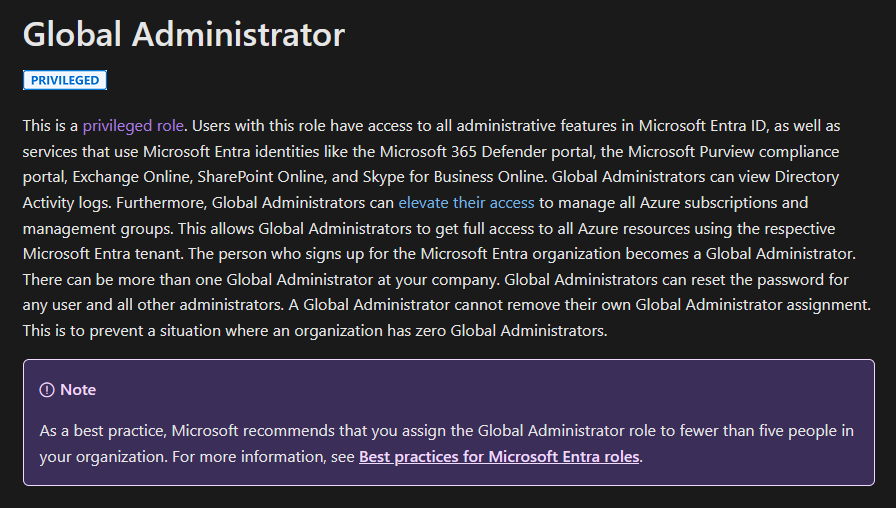
When it comes to securing Microsoft 365, your administrative accounts are the “keys to the kingdom.” If an attacker gets hold of one, they can get you plastered all over the news, as we have seen so often.
Not quite the position anyone wants to be reading about over their morning coffee. And while "researching" about the topic on LinkedIn, I thought this post from Cyber Security News needed to be included.
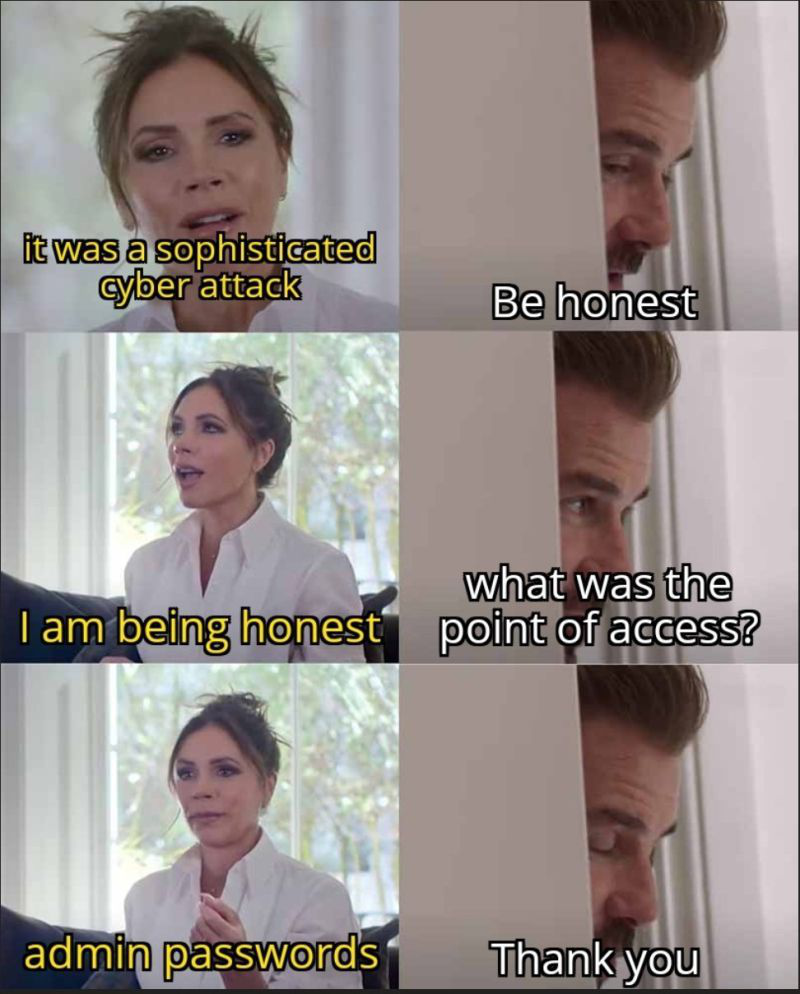
The problem? Too many organisations treat admin accounts like any other user: over-privileged, over-exposed, under-protected and largely forgotten.
As an industry, we have seen this story play out in real breaches. A single compromised admin account leads to ransomware deployment, mailbox rule abuse, and data exfiltration in minutes.
This guide walks through the Microsoft 365 essentials every organisation should implement to keep admin accounts safe, reduce over-privilege and limit the blast radius when something goes wrong.
Phishing-resistant multi-factor authentication
This is probably the most harped-on control, and for good reason. If your admin account is the keys to the kingdom, phishing-resistant MFA is the armoured vault door. Without it, you are leaving the keys under the welcome mat.
Authenticator apps do not make the cut anymore. That gives rise to FIDO2 and certificate-based authentication.
From your favourite YubiKey distributor:
Phishing-resistant MFA is multi-factor authentication (MFA) that is immune from attempts to compromise or subvert the authentication process.
Attackers cannot phish a key they cannot copy.
Now like you, I'm wondering which of the litany of administrative roles in Microsoft are recommended for phishing-resistant MFA.
Microsoft documents a short list of administrative roles recommended for phishing-resistant MFA:
- Global Administrator
- Application Administrator
- Authentication Administrator
- Billing Administrator
- Cloud Application Administrator
- Conditional Access Administrator
- Exchange Administrator
- Helpdesk Administrator
- Password Administrator
- Privileged Authentication Administrator
- Privileged Role Administrator
- Security Administrator
- SharePoint Administrator
- User Administrator
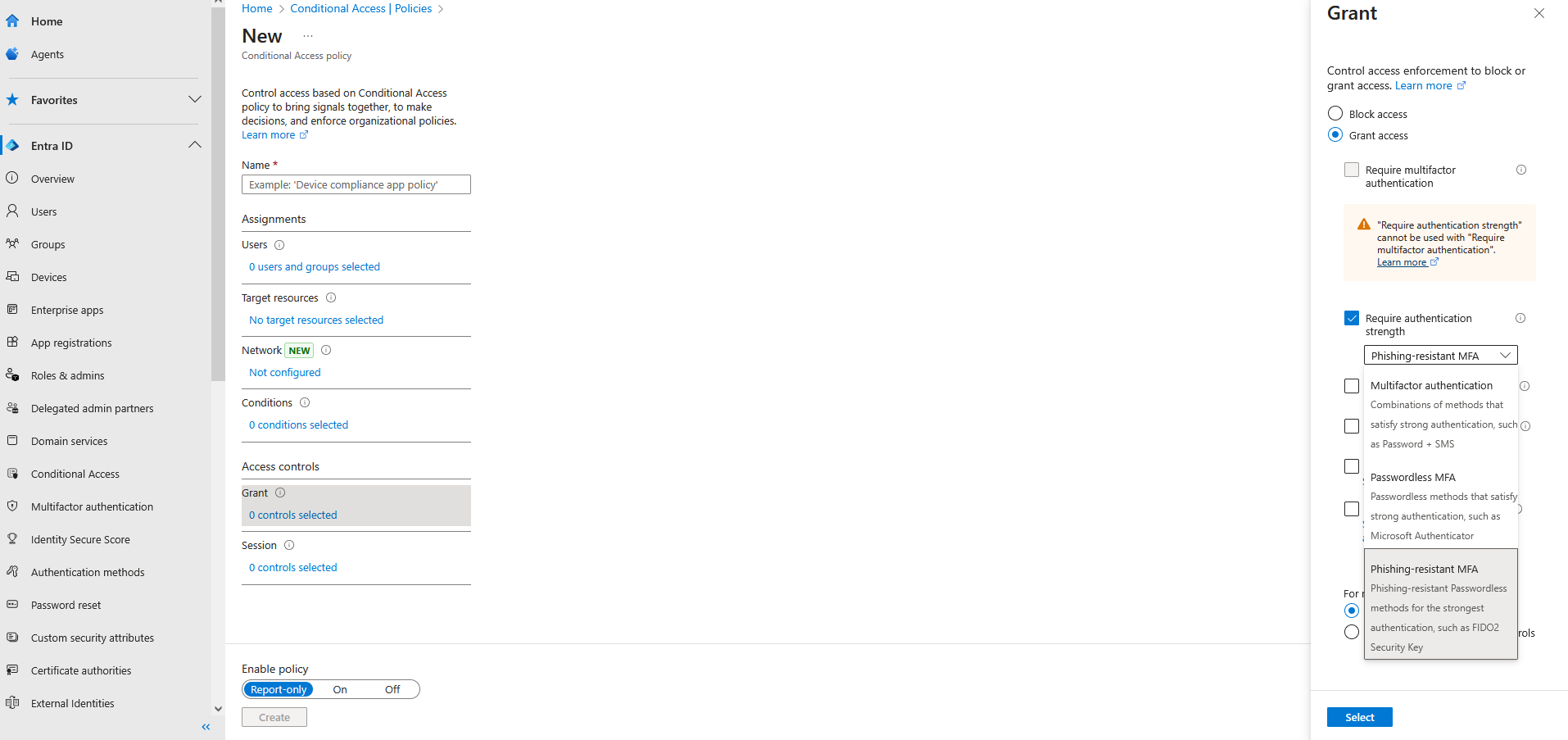
With a Microsoft Entra ID P1 license, follow through to Conditional Access and the Grant settings to enforce phishing-resistant MFA.
Now with the important one out of the way, there are multiple layers that should be considered before walking away with a job well done.
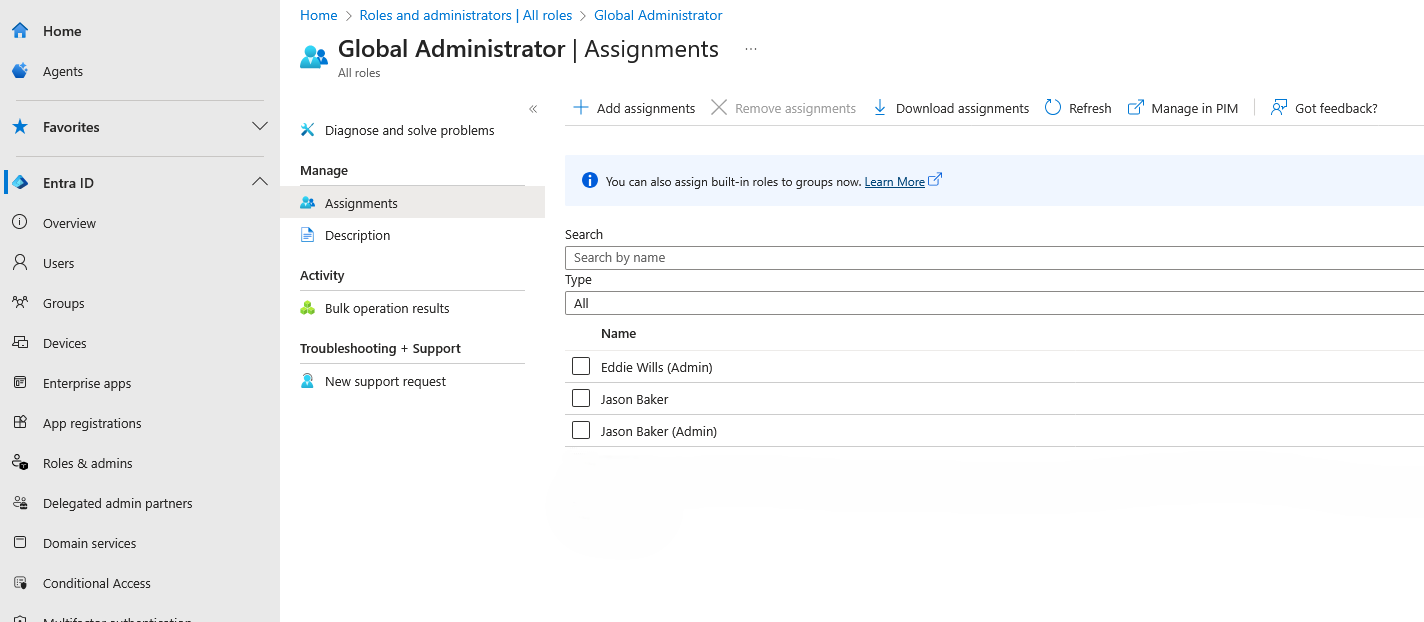
Global Admin rights
Global Admin is “God Mode” for Microsoft 365, and too many people have it. Do they need it? No.
Instead, use role-based access control (RBAC) to assign specific roles as needed. Better yet, remove standing administrative rights entirely and use just-in-time access when needed.
Just-in-time access
Pair Microsoft Privileged Identity Management (PIM) with RBAC to grant elevated rights for a set duration. When time is up, the rights go away automatically. Less standing privilege means a smaller attack surface.
Cloud-only admin accounts
If you are running hybrid, it is tempting to sync on-premises admin accounts into Microsoft 365. Do not.
Cloud-only admin accounts break the dependency on potentially compromised Active Directory environments, which removes one entry point for attackers.
Dedicated admin accounts
No mixing business with privilege.
Admins should never check email, join Teams meetings, or browse the web with their privileged account. Daily tasks and administrative duties should live in separate accounts. This single change can cut phishing risk dramatically.
All too often organisations mature and old habits linger on privileged accounts even when dedicated ones exist. A quick audit of privileged accounts could save a major headache.
Break-glass accounts
Things break. MFA systems fail. Network outages happen.
You need at least two emergency break-glass accounts with Global Administrator rights that are cloud-only, with credentials stored in a secure offline location. Test them regularly, because the worst time to find out emergency access does not work is during an emergency.
Log and monitor administrative activity
Turn on Unified Audit Logs and watch them.
Flag high-risk patterns such as sign-ins from unfamiliar countries, impossible travel events, and repeated failed MFA attempts. Better yet, integrate logs into a SIEM or MDR for real-time alerts.
Strong password policy
Even with MFA, a weak password is a problem. Require long passwords, ban known-breached ones, and enforce lockouts for repeated failures.
To simplify passwords, use a passphrase generator.
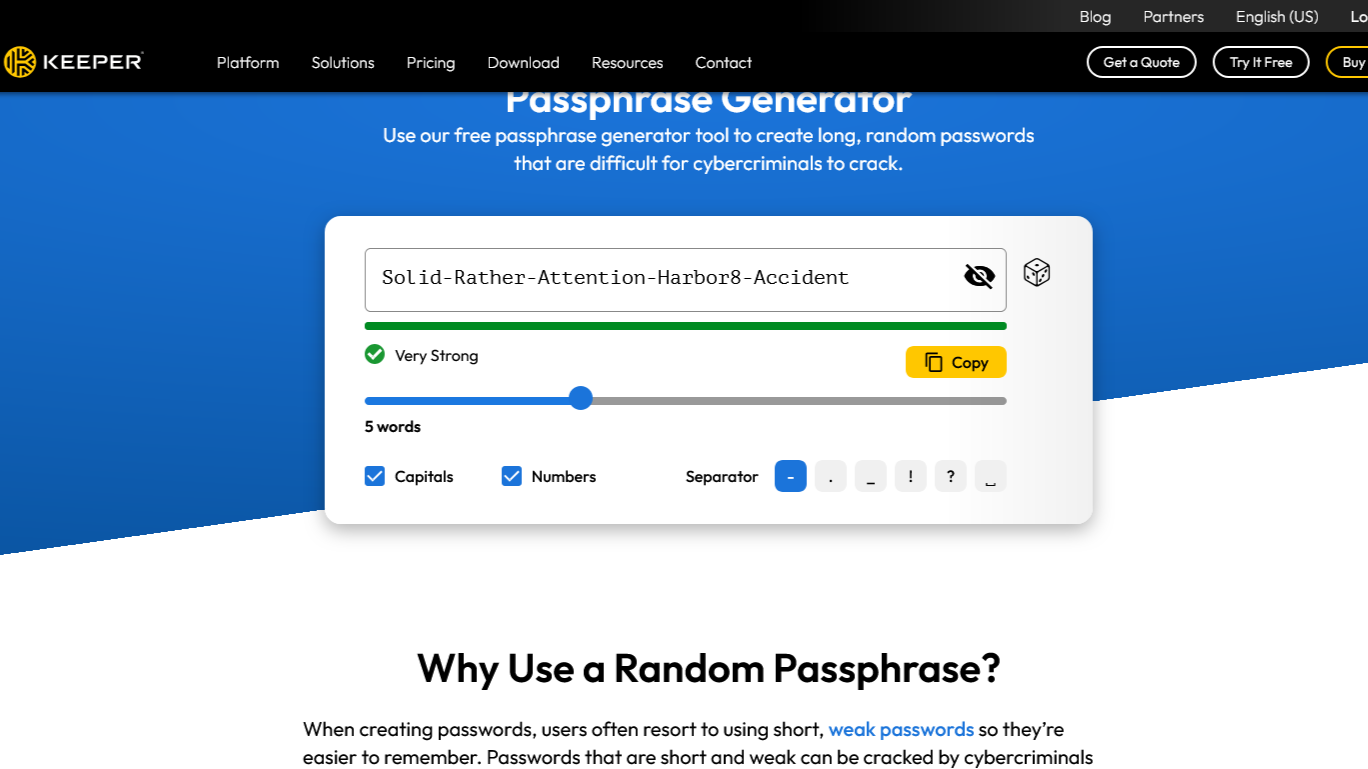
Easy to remember and does not need to be 42 characters long. Also, using a generator does not mean the service stores your passphrase.
Remove application licenses from admin accounts
If your admin account does not have Outlook, Teams, or SharePoint access, attackers cannot use those services to phish or spread malware.
No license = no inbox = no spear phishing.
Privilege is a liability
Every admin account is a potential breach path. By tightening privileges, enforcing strong authentication, and removing unnecessary access, you dramatically reduce the risk of an attacker turning one account into total compromise.
Start with the most critical controls, such as phishing-resistant MFA, and work through the list. Your admin accounts will thank you, and so will your security team.